
For Project Owners: Add a site list.
If your field team can’t log observations in real-time (like during dives, fishing trips, or remote expeditions), adding a site list to your project allows them to log their survey data after-the-fact using a site list. If your site list changes over the course of your project and you want to update it, re-follow the steps below.
Your site list needs to be formatted correctly
—> Prepare a site list with the columns ‘name’, ‘latitude’, ‘longitude’ in the top row (Row 1).
—> List the site names and coordinates below, with no blank cells. Be sure to include any new sites you wish to add.
—> Double check your site list — drop the lat/long values into a mapping tool, like Google Maps, to ensure they are in the right place (no missed negative signs, for example).
Here’s an example — you will be uploading a .csv or .xlsx version to your profile.

Then, once you are logged into the dashboard —
Navigate to your team/project.
To do this: (1) Tap ‘Teams’ in the left dashboard menu > (2) select ‘Owned Teams’ in the top menu > (3) select the team you want to add the site list to.
*NOTE: Your profile may have different options, depending on what tools you have enabled.

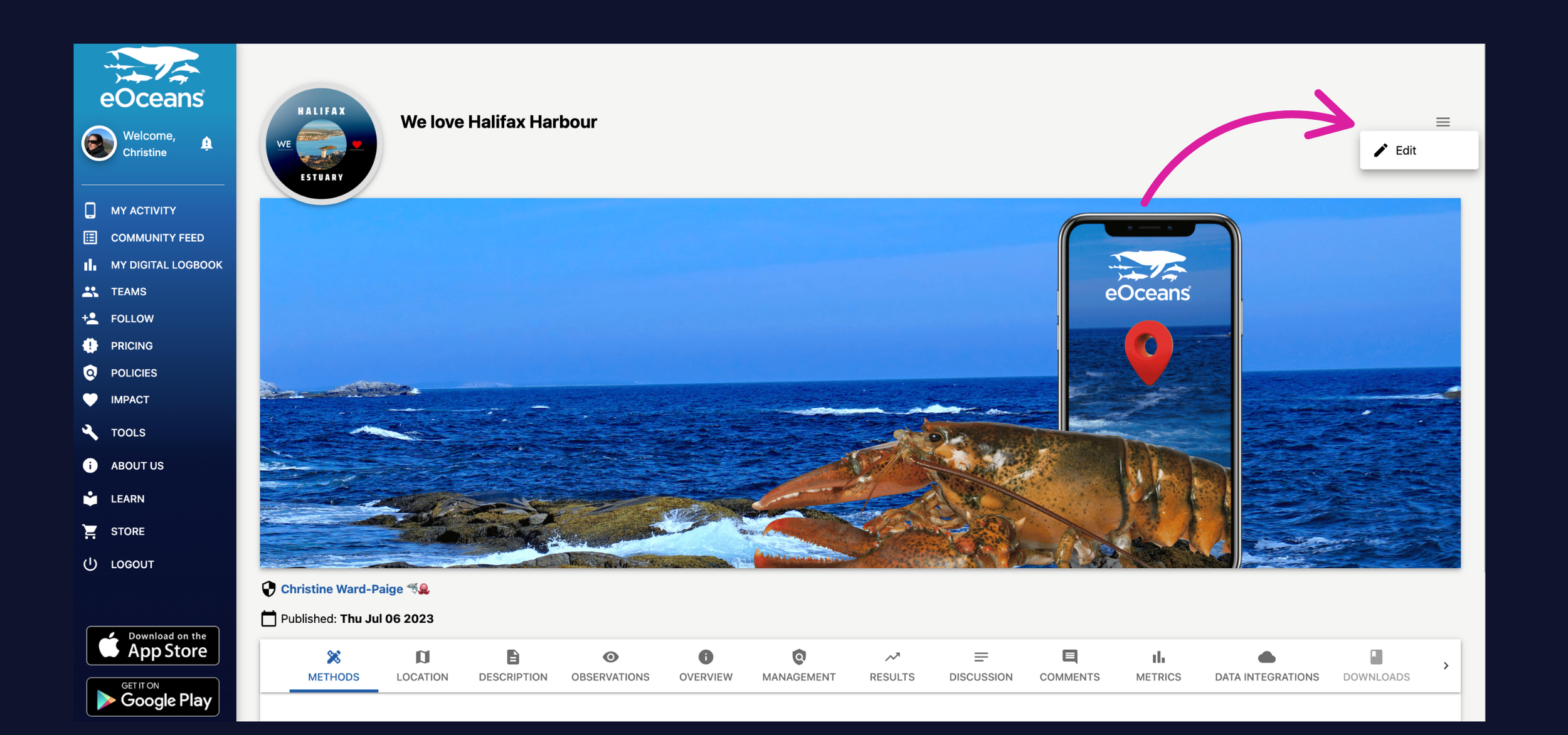
Begin to ‘Edit’ the project —
Once in the team project, tap ‘Edit’ from the top right burger menu.
Navigate to the Project Sites section to Upload site list —
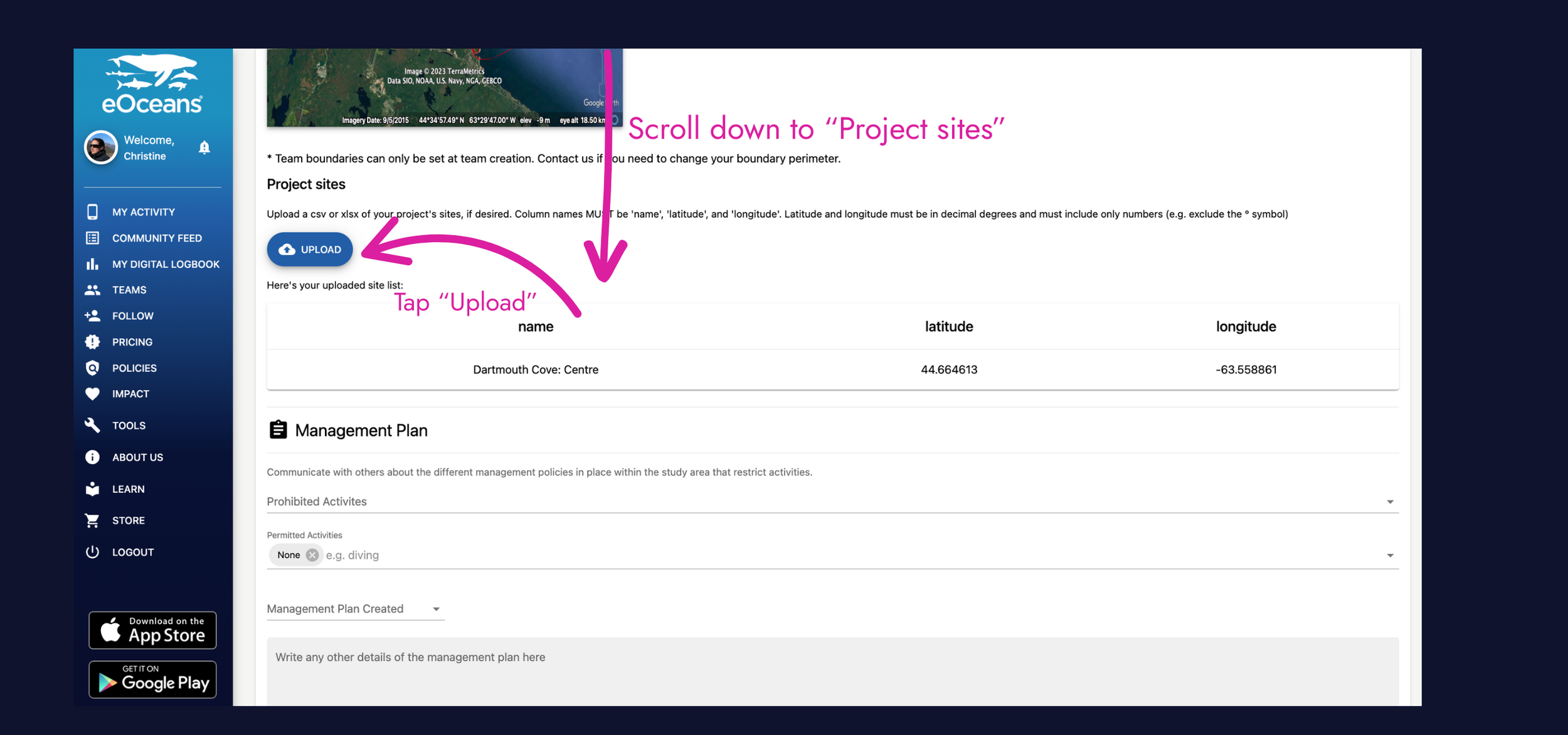
Scroll down on your team project page, down to the ‘Project sites’ section and select ‘Upload’.
Verify the upload in the preview.
Save the change —
Scroll down to the bottom, select save project.

Log using your updated sites —
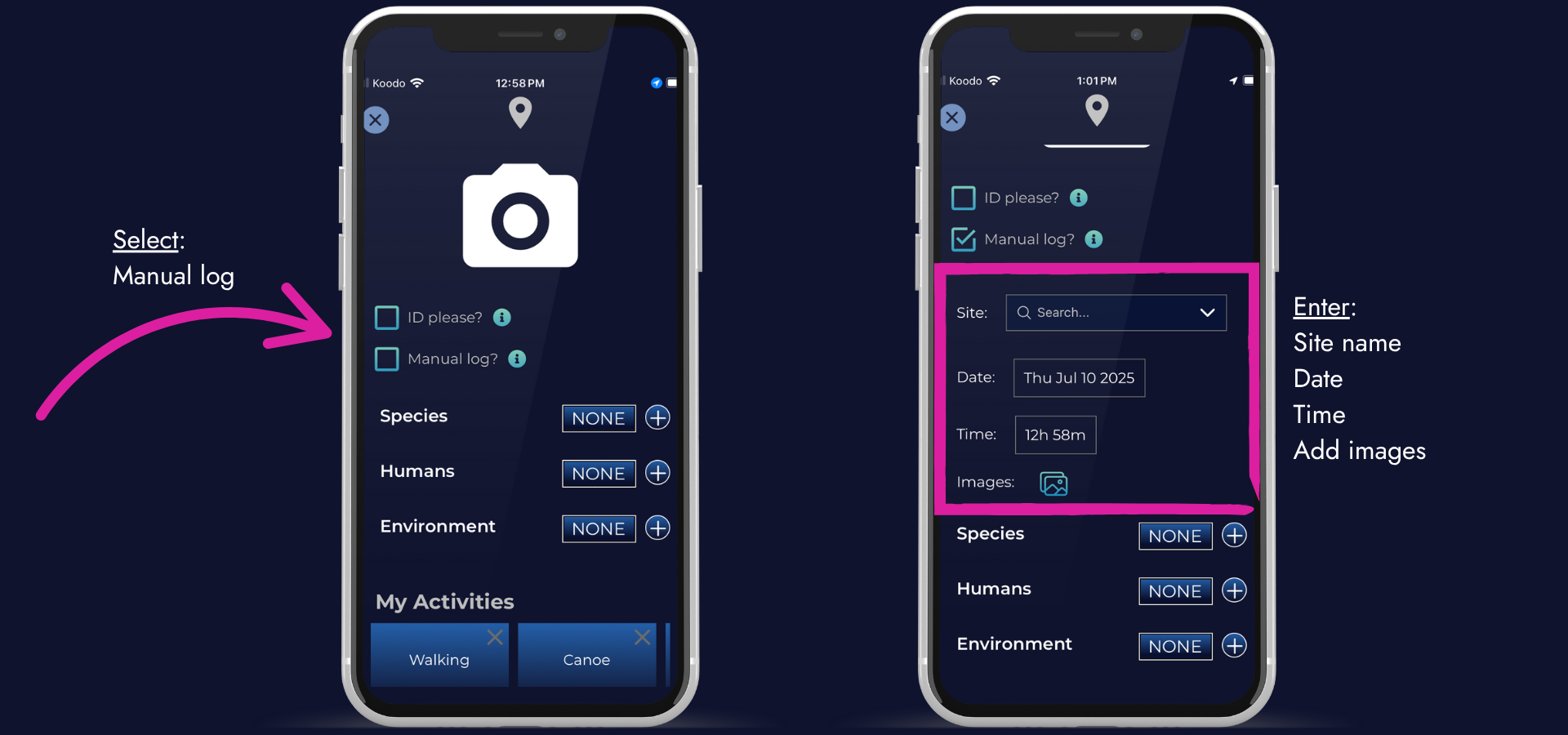
Now, when your team is logging in the MOBILE APP, click the ‘+’ to add a new observation, wait a few seconds and “Manual log?’ will appear below the camera icon. Once they select this option, they can enter the date, time, and select a site for the observation.
NOTE: This is an ONLINE only feature.
Having trouble? Our team is here to help.
Contact us or visit our how-to page for more information on using eOceans.