
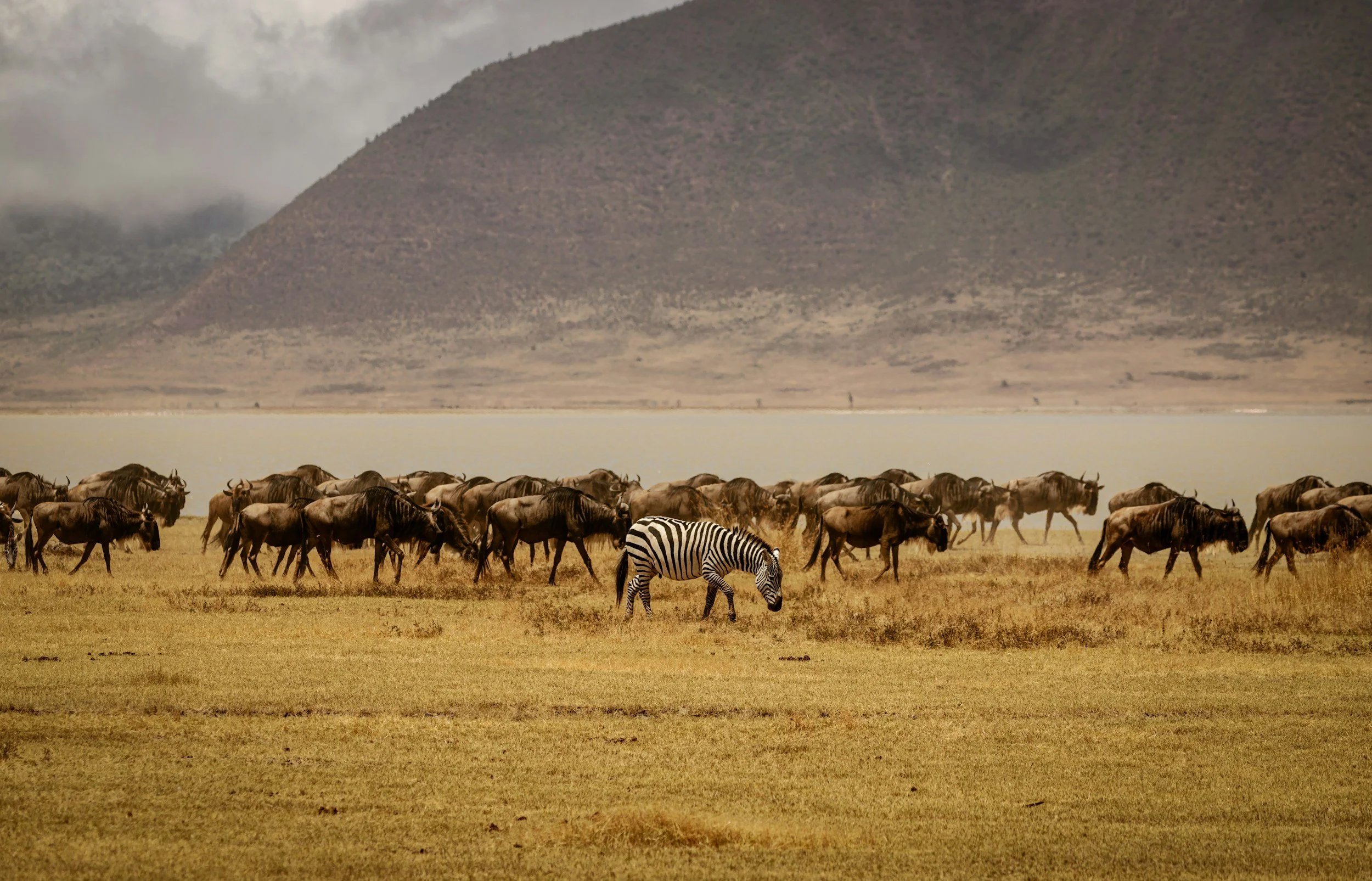
Features
From observation to insight — continuously

Dashboard.

Built for teamwork
Define your project: study area, sampling methods, variables, and more.
Onboarding your team, made simple.
Define your methods once — and ensure every team member is fully aligned, now and in the future.

Mobile app.
Take eOceans into the field with the companion mobile app for GPS enabled devices. The app lets you collect and update field data digitally, including photos, notes, and structured observations with GPS, date/time, and map context. All updates and new data syncs once back online, maintaining secure, role-based access and seamless workflows between office and field. The app is also used for following teammates, tracking field efforts, reviewing and validating observations, viewing summary statistics, and more.

Data compiled for Your Study Area.
Once you’ve defined your project, all data streams are unified within your study area — organized by sampling methods, variables, and protocols. This can be at any spatial scale.

Automatically Visualized.
-
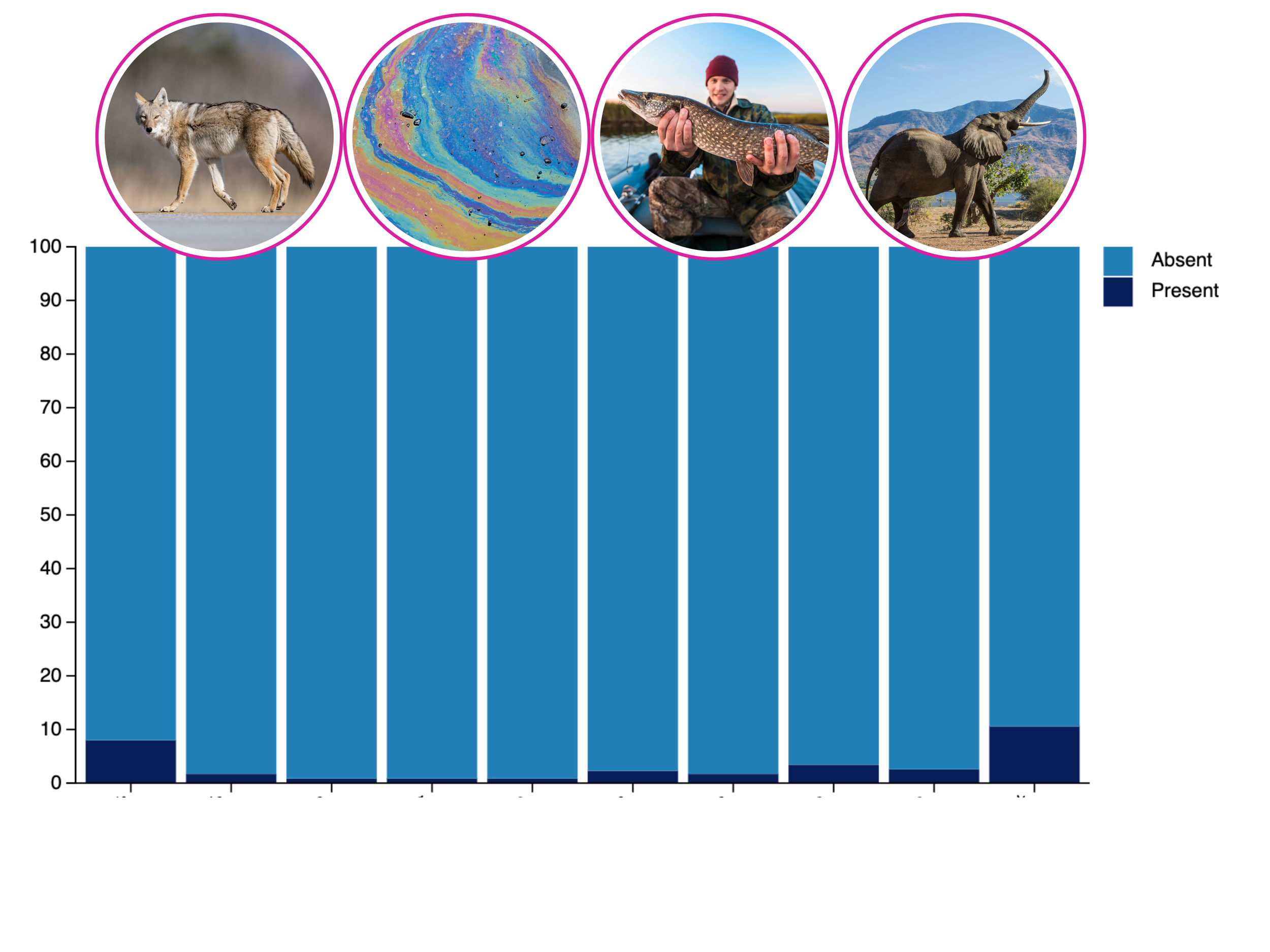
![Bar chart showing the presence and absence of various wildlife in a habitat, including a wolf, a colorful abstract pattern, a person holding a fish, and an elephant in the background.]()
Presence, Absence & Frequency
Are key species, activities, or threats present?
Examples: Species, pollution, disease outbreaks, fish kills, human activities.
Uses: Fisheries, tourism operators, health officials, vessel operators, environmental monitors.
-
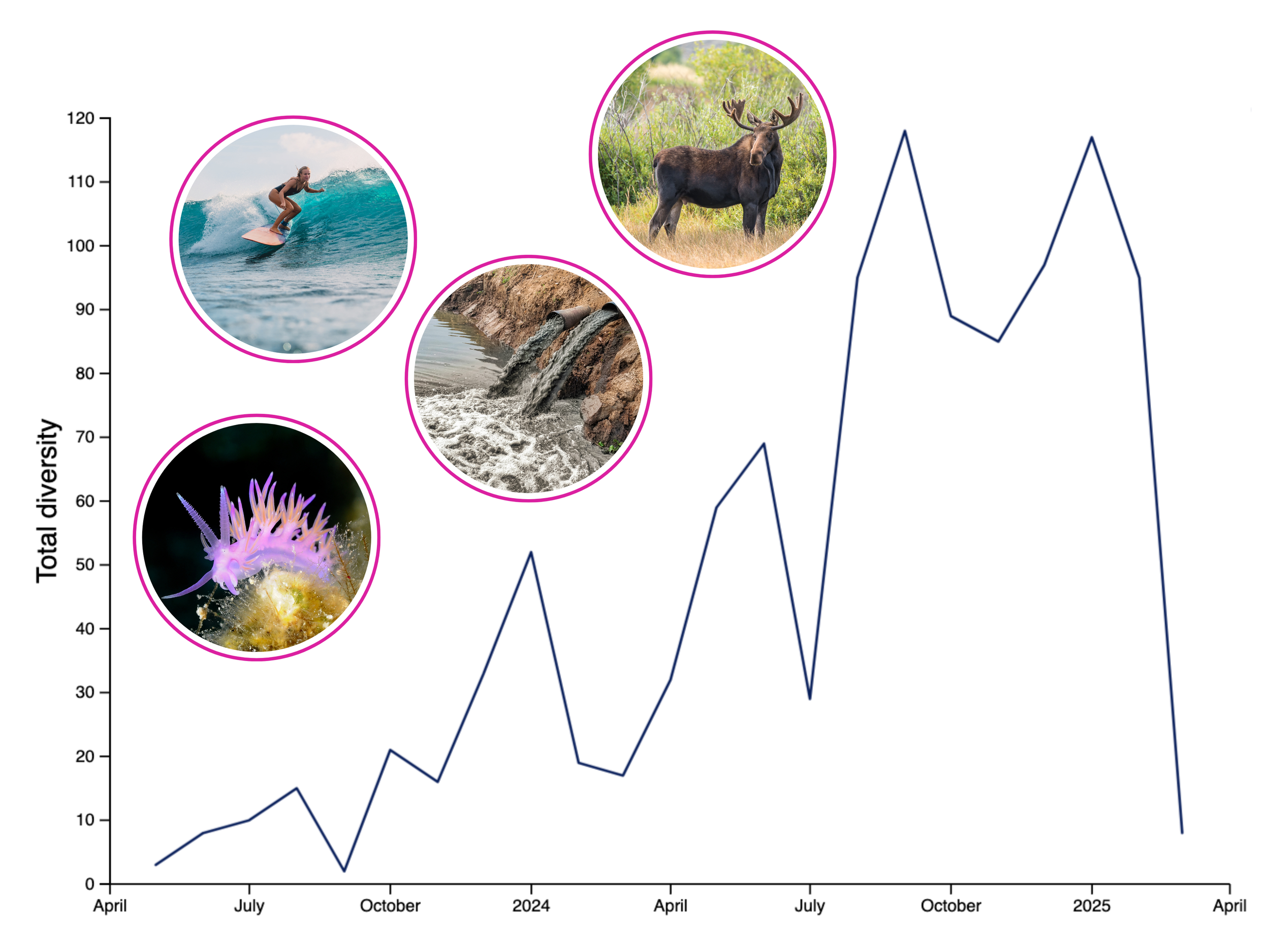
![A line graph showing total biodiversity over time, with significant increases at certain points. Overlaying the graph are five circular images bordered in purple: a woman surfing on a wave, a moose in a grassy area, waterfalls in a river, a purple sea slug on coral, and a mountain landscape.]()
Temporal Trends
What’s changing over time—daily, weekly, seasonally?
Examples: Fish/animal abundance, movements and migrations, invasive species, pollution, diseases.
Uses: Fisheries, conservation, epidemiology, supply chain analysts.
-
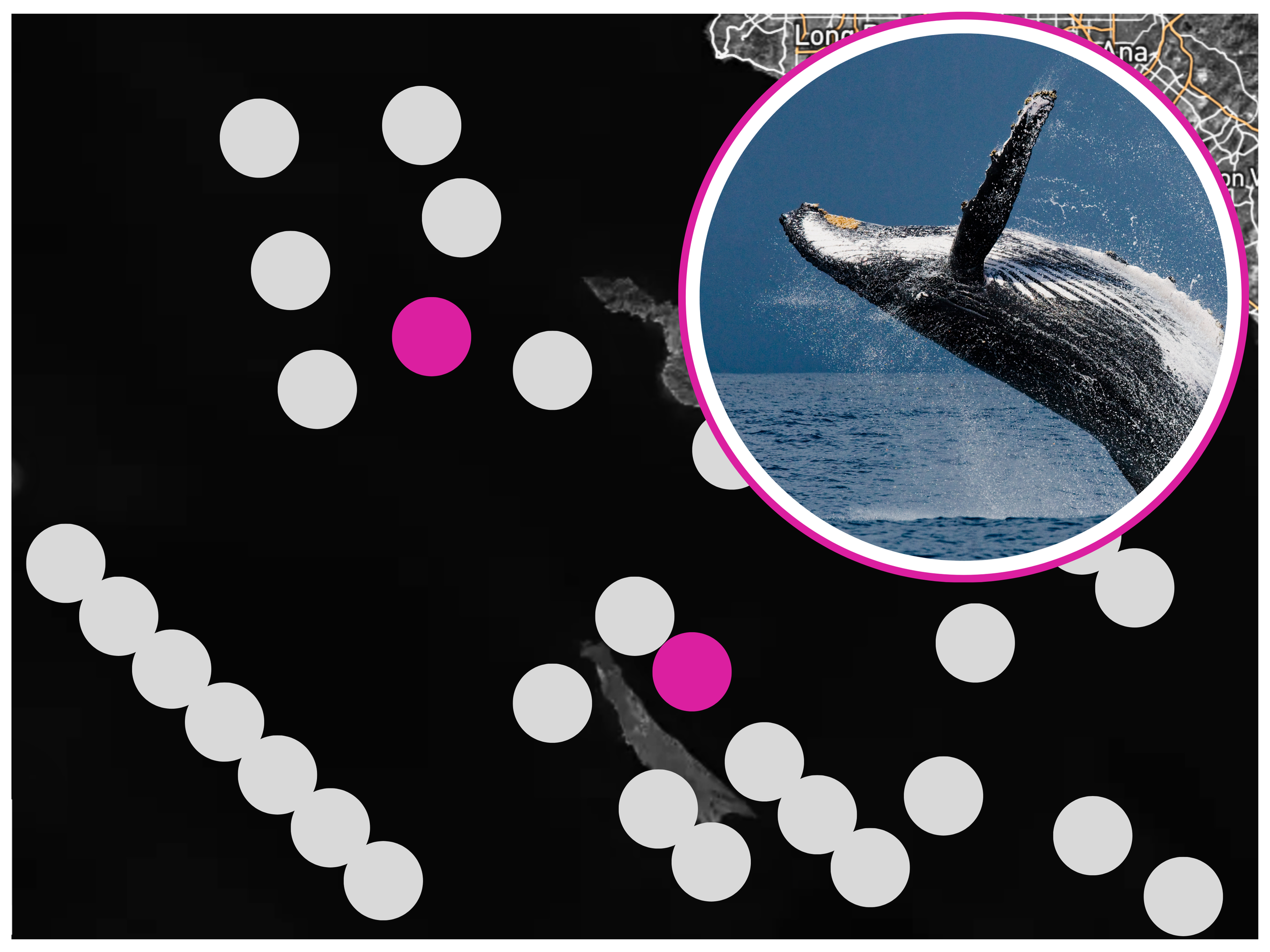
![Illustration of a whale breaching out of the ocean, with a photo of the whale jumping from the water encased in a pink circle overlay.]()
Spatial distribution
Where are species, activities, pollutants, diseases?
Examples: Endangered species, bycatch, pollution, ghost nets, invasive species.
Uses: Shipping companies, ecotourism, enforcement, aquaculture, public health.
-
![Scientific table summarizing biological data, including total observations, tracks, targets, counts, and species information with images of a sea turtle, dolphins, a bison, and a hippopotamus.]()
Effort-normalised metrics
Effort-based indicators like Catch Per Unit Effort (CPUE).
Examples: Catch and bycatch, wildlife by park rangers or scientists.
Uses: Fisheries, scientists, wildlife and protected area managers.
-
![A map of Laamu Atoll showcasing surrounding marine life, including a sea turtle, manta rays, a shark, a starfish, and a fish, with each species highlighted in circular inset images.]()
Hotspot & Risk mapping
Where are concentrations of risks or opportunities?
Examples: Whale strike zones, illegal fishing/hunting, disease outbreaks, fish kills.
Uses: Scientists, managers, decision makers, shipping, enforcement, aquaculture, climate monitoring.
-
![A hand holding a smartphone shows a social media app with a photo of an African wild dog. The screen displays various icons and a heart icon with a green checkmark indicating validation.]()
Data quality & validation
Are reports consistent and accurate?
Examples: Misidentified species, data gaps, incorrect methodologies.
Uses: Scientists, NGOs, policymakers, environmental impact assessments, logistics and trade analysts.
-
![A circular diagram showing the classification of marine animals, with photos of a shark, starfish, seal, and squid around the circle.]()
Diversity analysis
What’s the variety of species, activities, and threats?
Examples: Species richness, types of pollutants, range of human uses or cultural values.
Uses: Conservation, management, planners, economists, investors, public health, and community leaders.
-
![Laptop screen displaying a spreadsheet with colorful rows and columns, a person's hand typing on the keyboard, and five circular images of various outdoor scenes and animals floating above the laptop, including a boat on water, a lion, sailboats, a rescue boat with people, and a dolphin.]()
Clean Outputs
Are results clean, consistent, and ready for use?
Examples: Validated, interoperable spreadsheets, scalable analysis, and data sharing.
Uses: Scientists, NGOs, governments, industries, data managers, and consultants.


Data Downloads. Magic Uploads™.
With automated tools like Magic Uploads™ and Data Downloads, you get clean, standardized datasets. With Magic Uploads™, your data comes to life the moment you upload it.

Track all your key metrics.
As your data stream in — sampling effort, observations, engagement, and more — your key metrics are automatically processed and updated in real time.

Minimize errors, maximize usability.
Automatically standardize and quality check your data as it streams into your project: deliver clean, error-free, interoperable datasets. Your data are ready to use, analyze, and share—without the cleanup.

Quality Data.
Many ways to minimize errors:
In-App Field Guide for instant species info, making identification quick and accurate.
ID Please for team collaboration, ensuring correct species and observation identification.
Quality Check for real-time data validation with check, caution, and X markers, enabling on-the-go error correction.

Ocean Ledger™ and Global Biodiversity Ledger™
When your data can be shared openly, contributing to the Ocean Ledger™ and Global Biodiversity Ledger™ unlocks global collaboration. Aggregated across participating projects worldwide, these ledgers provide a real-time view of biodiversity health at planetary scale.

Where to Start
Launch your project in minutes.
i) Fill out a short form

Setting up a project is as simple as filling out THIS form:

Then, add data.
Depending on your project needs, data can stream into your project in 3 ways:
Mobile app – Capture and add data directly to your project via the eOceans mobile app
**Collect data offline, in the field. Upload the data when connected. eOceans automatically shares data to all projects it needs to go to.
Spreadsheet uploads – Upload existing data to your project using our Magic Uploads™ feature.
Sensors or data streams – We can build custom APIs to stream data directly to your project.

Interpret results, communicate with stakeholders.
Your maps, graphs, tables, and reports update automatically as data are added.
